Using the Validation Feature
This article explains Stimaro's bid validation: how to run it, what it checks, what common warnings mean, and how to resolve them. Validation is a pre-submission safety check — it reviews your bid for problems and points you to fixes, but it never changes your bid on its own.
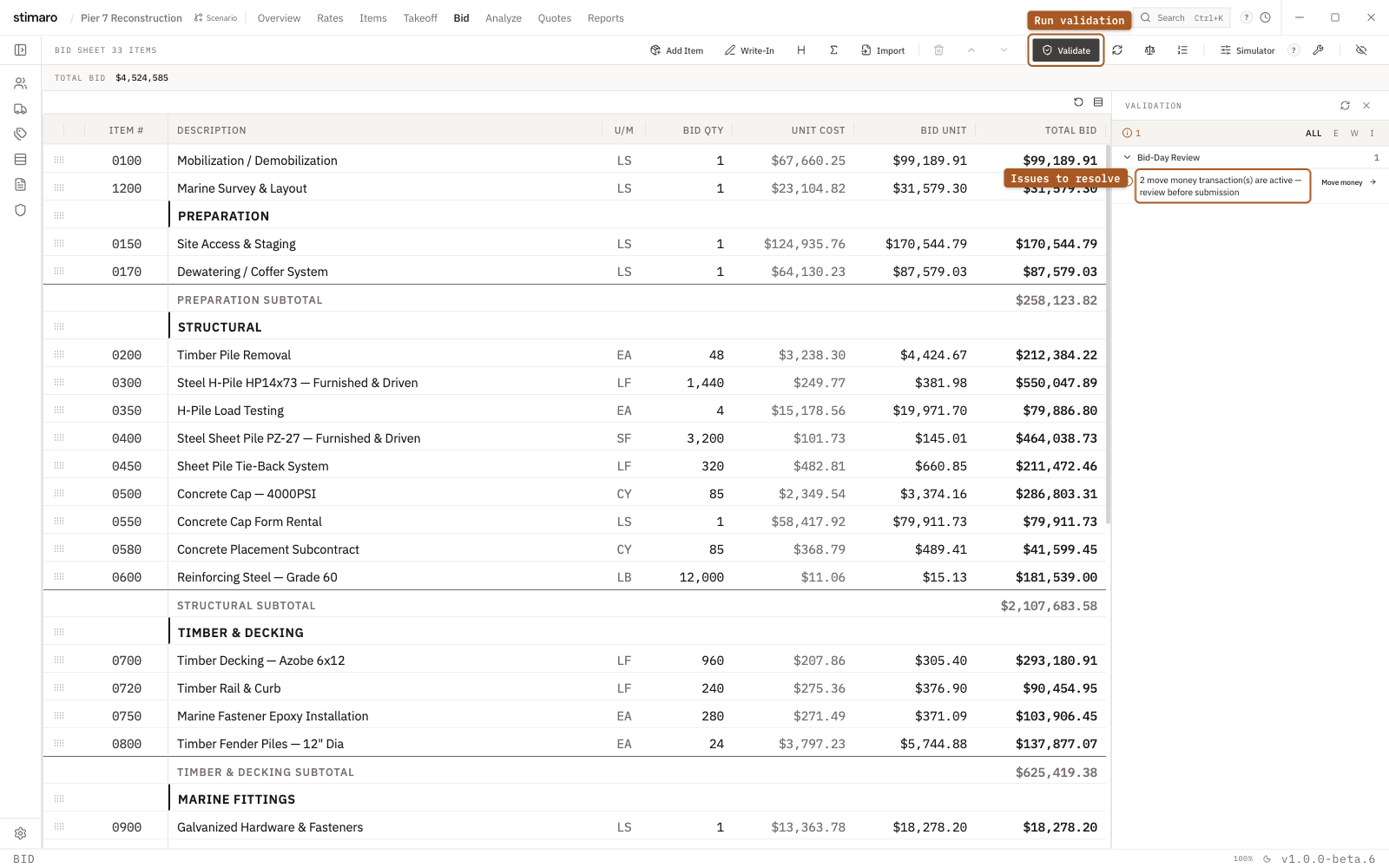
Bid toolbar. Issues appear on the right, grouped by severity, each with a jump-to-fix action.Running validation
Open the Bid tab and click Validate in the toolbar.
Stimaro reviews your bid and, if it finds anything, shows a review banner with a count of issues. Click Review to open the validation panel, where issues are grouped by category and severity (errors, warnings, and informational notes).
What validation checks
Validation runs four categories of checks:
Completeness — Do you have bid rows? Does every row with a quantity also have a price? Are descriptions and units filled in? Are there priced items you forgot to put on the bid? Is your bid date set?
Pricing — Sanity checks on your numbers: negative costs, unusually large quantities, and mismatches between an item's calculated cost and its bid price.
Structural — Layout and consistency: duplicate item numbers, empty sections, and whether your bid totals are balanced.
Bid-Day Review — Final pre-submission checks: markup that's unusually high, low, or missing, incomplete indirect cost allocation, and any open items needing attention.
Common issues and how to fix them
A bid row has a quantity but no price. (Error) Enter a price for the row, or link a priced item sheet to it.
A priced item isn't on the bid. (Warning) You have an item sheet built but not linked. Use Add Item to link it, or remove it if you don't need it.
An item has no cost. (Warning) A linked item sheet shows $0 because it has no resources yet. Open the item and add labor, equipment, or material resources.
No markup, overhead, or profit set. (Warning) Your markup layers are all at zero. Open the Markup Summary panel and set your percentages.
Markup looks unusually high or low. (Review) A markup is well above normal, or your total markup is abnormally low or negative. Confirm your percentages in the Markup Summary — fix them if it wasn't intentional.
A bid price doesn't match the calculated cost. (Warning) A row's bid price differs noticeably from its built-up cost, often from a manual override. If it's deliberate, you can leave it; if not, re-sync the row or Use Auto-Balance (the scale icon ⚖, 'Auto-balance bid units').
Indirect costs aren't fully allocated. (Warning) Your posted indirect allocations add up to less than 100%, so some indirect cost isn't in the bid. Open the indirect tool and adjust the allocations.
Duplicate item number. (Error) The same item number appears more than once. Renumber the duplicates so each row is unique.
Unbalanced bid. (Warning) What your rows sum to differs from the calculated balanced total after markup. Use Auto-Balance or review any manual overrides to reconcile.
No items on the bid. (Error) The bid is empty. Add items or write-in rows.
Bid date issues. A bid date in the past shows as an error; a bid date of today shows as a warning to prompt final review. Update the project's bid date if it's wrong.
Jumping straight to a fix
Many issues include a Fix it action that takes you directly to the right place — the markup panel, the indirect tool, or the bid balancing action — so you don't have to hunt for where to make the correction.
What a clean bid looks like
A fully validated bid shows zero errors and, ideally, no warnings — the validation panel is empty or shows only informational notes, and there's no active error banner in the toolbar. Zero errors means nothing is blocking submission; zero warnings means the validator sees nothing it thinks you should double-check first.