Using the RFQ Feature
This article walks through the full RFQ workflow in Stimaro — creating a request for quote, collecting and comparing vendor prices, and applying winning quotes back into your estimate.
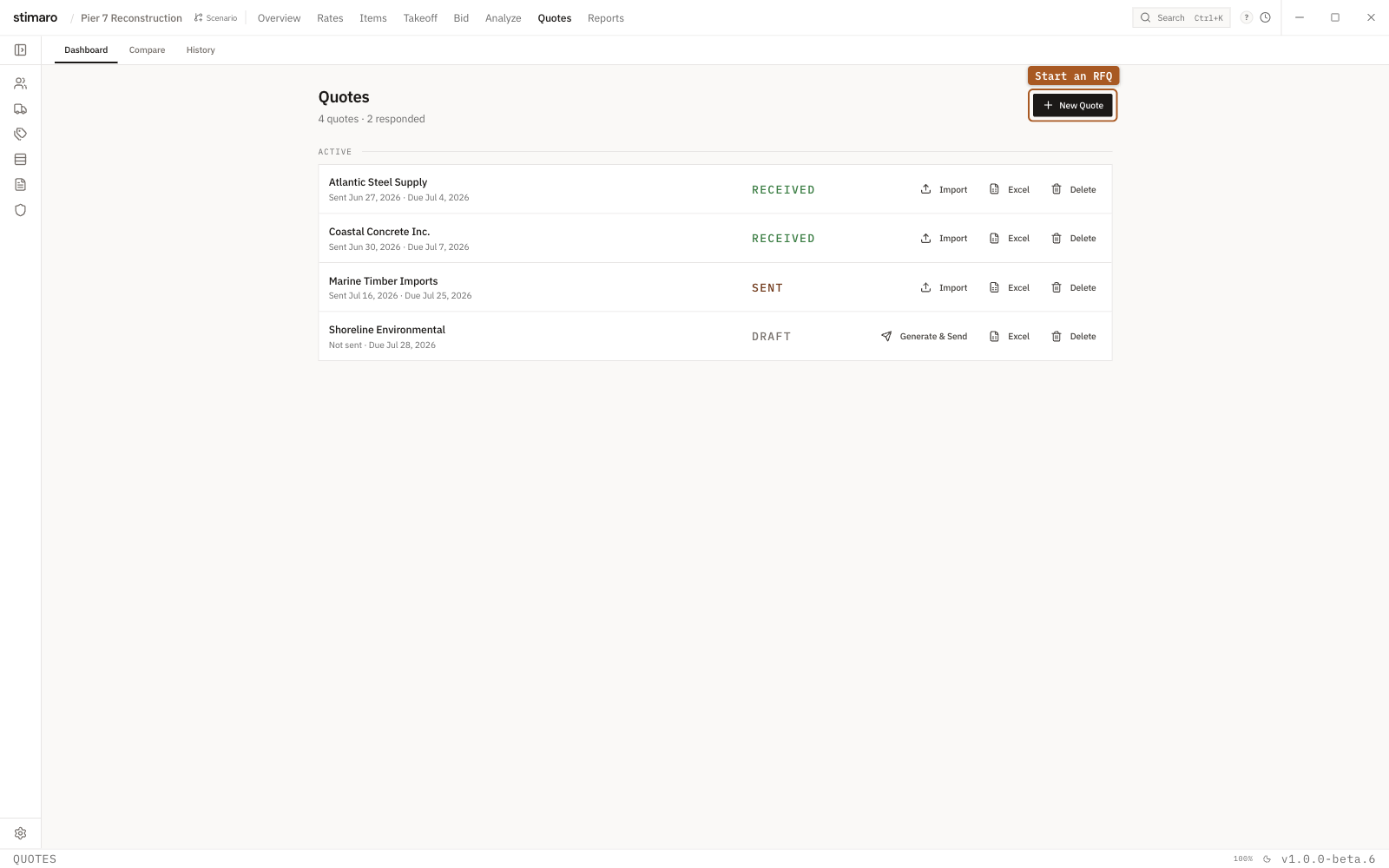
Quotes tab. Track every RFQ and its status, import vendor responses, and generate quote-request spreadsheets.Overview
The RFQ tab manages vendor quote requests end to end, across three sub-tabs: Dashboard (all RFQs for the project), Compare (side-by-side price comparison and locking), and History (a searchable archive of locked quotes across all projects).
Step 1: Create a new RFQ
On the RFQ tab, click New RFQ to open the three-step wizard.
Select vendor. Pick a vendor from your library (their past quote history shows below the picker), or click New vendor to enter one — check Save to vendor library to keep them for future use.
Select items to quote. Choose the scope two ways. In Resources mode (default), the wizard groups material, subcontract, rental, and other resources from your items by code and sums quantities across the project; filter with the category tabs and check what you want priced. In Bid Items mode, you check off whole bid items instead. Click Bid Items to switch modes.
Review. Set a Due date, add any Notes for the vendor, confirm the summary, and click Create. The RFQ is saved as a draft.
Step 2: Send the RFQ
On the Dashboard, your draft RFQ appears with a draft badge. Click Generate & Send to produce a formatted Excel workbook (with your line items and a blank price column) and mark the RFQ sent. Or click Excel to generate the file without changing status.
Step 3: Import the vendor's quote
When a vendor returns prices, click Import on the RFQ row (available when it's sent or received). In the Import Vendor Quote dialog, select the quote file:
- PDF — extracted via OCR and AI (requires an active Stimaro sign-in)
- XLSX or CSV — read directly, no AI needed
Confirm the RFQ and vendor, then click Extract & Review (PDF) or Import & Review (spreadsheet). A review pane opens with the original document on the left and the extracted line items — with editable prices — on the right, so you can correct any extraction errors and match each line to the right RFQ item using the dropdowns (confidence scores help guide the matching). Click Confirm & Import to save the prices; the RFQ status updates to received.
Tracking RFQs on the Dashboard
The Dashboard lists every RFQ for the project with the vendor, sent and due dates, and a status badge (draft, sent, received, expired). Row actions let you generate-and-send a draft, import a quote, export the Excel, or delete the RFQ. Click a row to load its quotes into the Compare tab.
Comparing quotes
The Compare tab shows RFQ items as rows and vendors as columns, with prices filling in as you import quotes. A coverage bar at the top shows how many lines have two or more quotes, one quote, or none. Vendor summary cards show totals, items quoted, average lead time, and locked-quote count.
In the grid, the lowest price on each line is highlighted, each cell has a Lock button to record that price in your history, and a vs History column shows how the lowest price compares to what you paid before.
Toolbar actions:
Lock Lowest— locks the lowest quote on every quoted line in one step (with a confirmation first).Apply to Bid— writes the locked Material, Subcontract, and Other prices back into the matching item sheets, updating each item's effective rate. A review drawer shows exactly what will change, and by how much, before you confirm.Import Quote— re-opens the import dialog for another vendor.
Lock Lowest and Apply to Bid require a single RFQ selected — switch from the All Vendors view to a specific RFQ first.
The History archive
The History tab is a permanent, searchable record of every quote you've locked across all projects, showing vendor, description, unit, unit price, project, and quote date. Type a description and search to filter. The archive builds automatically each time you lock a quote.
Workflow notes
- The RFQ feature generates Excel files; it doesn't send email — you deliver the file yourself.
- AI extraction from PDFs needs an active sign-in; XLSX and CSV imports don't.
- Locking a quote both marks it the winner in the comparison and records it in your price history.
- After
Apply to Bid, re-check your bid pricing so the updated rates flow through.