Setting Up Labor Rates
This article explains how to set up labor rates in Stimaro — where they live, how to enter a worker classification with its wage and burden, and how the rate's loaded cost flows into your items.
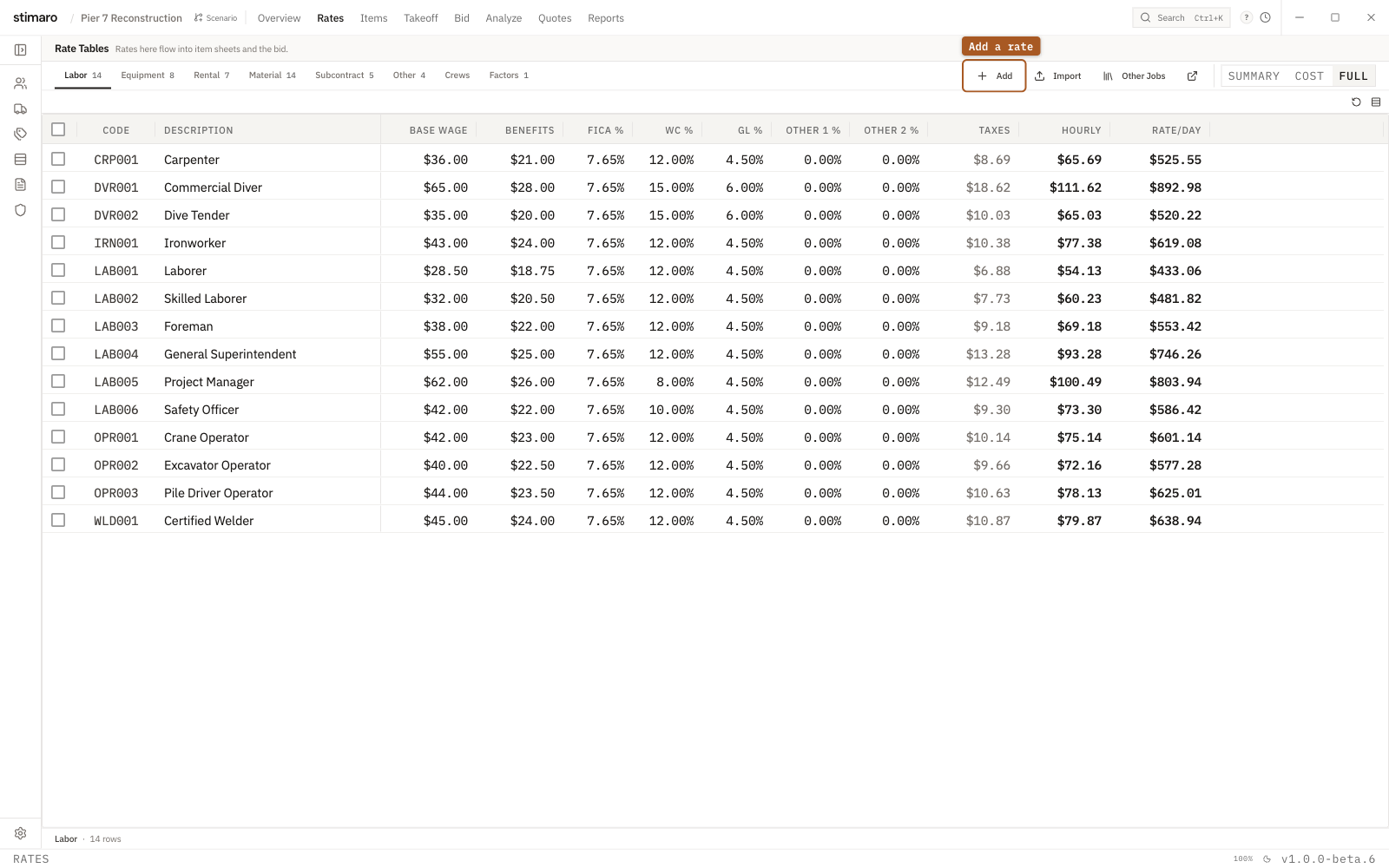
Labor rate table. Each classification carries its full burden — base wage, benefits, taxes, workers' comp, and liability — and Stimaro rolls it into a loaded hourly and daily rate.Where labor rates live
Labor rates are on the Rates tab. Open a project, click Rates in the top bar (or press Ctrl+2), and select the Labor sub-tab. Each row is one labor classification — Foreman, Ironworker, Laborer, Operator — with its wage and burden. Set these up before building item sheets, since your items pull their labor cost from here.
Understanding a labor rate
A labor rate isn't just an hourly wage — it's the fully loaded cost of an hour of that worker's time, including the burden every employer carries on top of the base wage. The Labor grid columns are:
Code— a short identifier you assign (for example, LAB001 or FM).Description— the classification name (for example, "Ironworker").Base Wage— the hourly base wage.Benefits— hourly benefits cost (health, retirement, and similar).FICA/FUTA/SUTA %— payroll taxes as a percentage (Social Security, Medicare, and federal/state unemployment).Workers Comp %— workers' compensation insurance as a percentage of wage, which varies by trade and state.General Liability %— general liability insurance as a percentage.
From these, Stimaro calculates two values automatically:
Hourly— the fully loaded hourly cost: base wage plus benefits plus all the burden percentages applied on top.Rate/Day— the daily cost, the loaded hourly rate times your standard workday hours.
The burden percentages are the key to accurate labor costing: they capture the real cost of employing someone beyond their paycheck. A worker who earns $52.50 an hour actually costs meaningfully more once taxes, comp, liability, and benefits are loaded in — and that loaded number is what belongs in an estimate.
Adding a labor rate
- On the
Laborsub-tab, click+ Add. A new row appears. - Click into each cell and enter the values —
Code,Description,Base Wage,Benefits, and the burden percentages (FICA/FUTA/SUTA %,Workers Comp %,General Liability %). - Press
Enteror click away to save. TheHourlyandRate/Daycolumns calculate automatically as you fill in the inputs.
Each code must be unique within your labor rates.
Editing a labor rate
Labor rates edit inline. Click (or double-click) any cell, type the new value, and press Enter or click away to save. The loaded Hourly and Rate/Day recalculate immediately. Because items pull from these rates, updating a rate flows through to every item that uses it.
A note on the daily rate
Stimaro calculates each labor rate's Rate/Day as the loaded hourly rate multiplied by an 8-hour workday. This 8-hour basis is fixed — it's the standard assumption built into the rate calculation, and it applies to every labor rate.
If a crew on a particular job works longer or shorter days, you have two ways to reflect that in your estimate rather than changing the daily rate itself: price the work using the hourly rate and enter the actual hours, or apply a factor to the resource line (for example, to capture overtime or extended shifts). Both keep your cost accurate without relying on the 8-hour daily figure.
Crews
When you regularly use the same group of workers together — say a foreman, an operator, and two laborers as a pile-driving crew — you can define them once as a crew rather than adding each individually every time. Crews live on their own Crews sub-tab under Rates, and a saved crew can be dropped onto an item in a single step. See Building reusable assemblies for how to build and use crews.
How labor rates connect to items
When you add a Labor resource to an item (on the Items tab, using + Add Resource), you pick a labor rate by its code. The rate's loaded hourly cost becomes the per-unit cost for that resource line, so when you enter the hours, the full burdened cost — taxes, comp, liability, and all — flows into the item and up into your bid automatically. You set the burden once, on the rate, and every item that uses it carries those costs without you having to think about them again.