Generating Reports and Bid Sheets
This article explains how to use Stimaro's Reports area to preview, customize, and export bid sheets, proposal documents, and internal estimate reports.
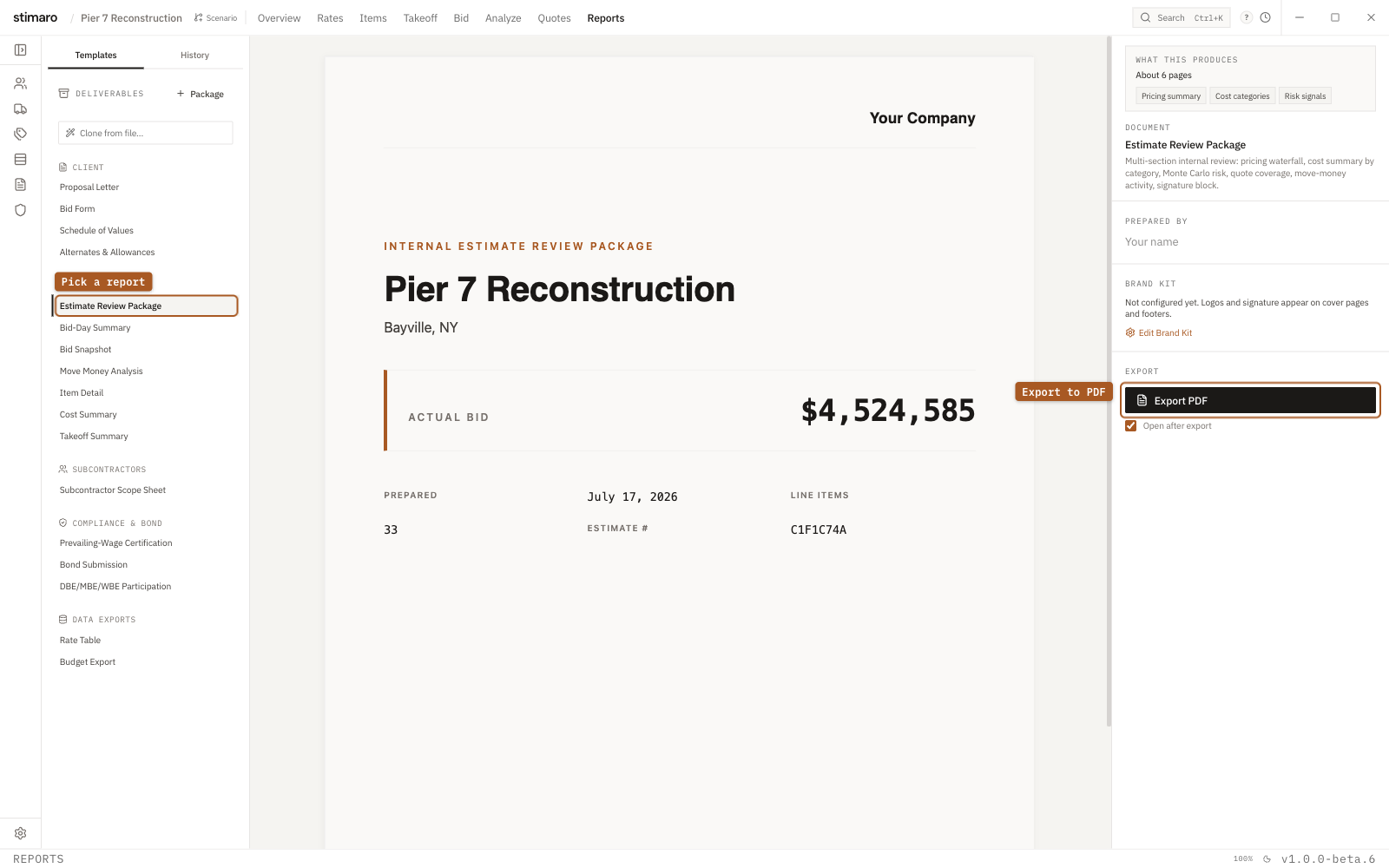
Reports tab. Pick a template from the rail, preview it, and export to PDF.Reports turn your estimate data into documents you can review, share, print, or submit.
Open Reports
To open the Reports area:
- Open a project.
- Click
Reportsat the top of the project workspace. - Or use
Ctrl+8.
The Reports workspace is organized into three main areas:
| Area | Purpose |
|---|---|
| Left panel | Choose a report template or view export history |
| Center preview | Preview the report before exporting |
| Right panel | Adjust variables, branding, and export options |
The basic workflow is simple: choose a template, preview it, adjust the available fields, and export.
Choose a Template
The left panel shows the available report templates.
Templates are organized by purpose. Some are intended for customer submission, while others are designed for internal review or detailed estimating analysis.
Client-Facing Templates
Client-facing templates are designed for documents you may submit or share outside your company.
Examples include:
| Template | Use |
|---|---|
| Bid Form | Bid submission or owner-facing bid format |
| Proposal Letter | Professional proposal summary or cover letter |
| Schedule of Values | Billing or value breakdown format |
| Bond Submission | Bond-related submission support |
Internal Templates
Internal templates are useful for reviewing the estimate before submission.
Examples include:
| Template | Use |
|---|---|
| Bid Snapshot | Full bid sheet with items, totals, and markup detail |
| Estimate Review Package | Internal review for leadership, partners, or project teams |
| Cost Summary | Cost breakdown by category and markup layer |
Detailed Templates
Detailed templates help you inspect specific parts of an estimate.
Examples include:
| Template | Use |
|---|---|
| Item Detail | One item with its resource lines and category totals |
| Rate Table | Formatted rate information for review or sharing |
Specialized Templates
Specialized templates support more specific workflows.
Examples may include:
- Move Money Analysis
- Prevailing Wage Certification
- Subcontractor Scope
- Alternates & Allowances
The templates available in your workspace may depend on your Stimaro setup, plan, and onboarding configuration.
Preview a Report
Click a template in the left panel to preview it.
Stimaro renders the report in the center preview area using your current project and estimate data.
The preview shows the report as it will appear when printed or exported, including:
- Project information
- Customer or recipient information, if selected
- Estimate items
- Quantities and units
- Unit costs and totals
- Markup and overhead details, depending on the template
- Company branding, if configured
Use the preview to confirm that the report looks right before exporting.
Customize Report Fields
The right panel shows fields and options for the selected template.
Different templates expose different controls. Common options include:
| Field or Control | Purpose |
|---|---|
| Recipient | Select a customer, owner, vendor, or internal recipient |
| Prepared By | Add the name of the person preparing the report |
| Date fields | Set bid dates, signature dates, or report dates |
| Section toggles | Show or hide sections such as totals, terms, markups, or alternates |
| Custom headings | Adjust titles such as Proposal, Quote, Estimate, or Bid |
As you update these fields, the report preview refreshes so you can review the changes before exporting.
Use Your Brand Kit
Stimaro can apply your company branding to reports.
Brand settings may include:
- Company logo
- Signature image
- Accent color
- Secondary color
- Primary font
- Secondary font
Your Brand Kit helps keep exported reports consistent across templates.
If your logo or signature is not appearing, check your Brand Kit settings and confirm the image has been uploaded correctly.
Export a Report
After choosing a template and reviewing the preview, export the report.
To export:
- Confirm the report preview looks correct.
- Check any variables or toggles in the right panel.
- Choose the export format.
- Click
Export. - Select a location on your computer.
- Save the file.
Common export formats include:
| Format | Use |
|---|---|
| Best for printing, emailing, or submitting a final document | |
| Excel | Useful for tabular reports or additional spreadsheet review |
| CSV | Useful for data transfer or import into another system |
Some templates may support more export formats than others.
If Open after export is enabled, the exported file will open automatically after saving.
Common Report Workflows
Submit a Bid to an Owner
Use this workflow when you are ready to submit pricing externally.
Recommended template: Bid Form
Typical steps:
- Open
Reports. - Select
Bid Form. - Choose the customer or recipient.
- Enter the prepared-by name.
- Confirm the bid totals and sections are correct.
- Export as PDF.
- Send the PDF through your normal submission process.
Send a Proposal Summary
Use this workflow when you want a more polished summary or cover document.
Recommended template: Proposal Letter
Typical steps:
- Select
Proposal Letter. - Choose the recipient.
- Enter the prepared-by name.
- Confirm the company branding.
- Review the proposal summary.
- Export as PDF.
Review an Estimate Internally
Use this workflow before final approval or partner review.
Recommended template: Estimate Review Package or Bid Snapshot
These reports are useful for:
- Leadership review
- Partner sign-off
- Internal quality checks
- Reviewing totals, cost categories, and markup assumptions
Export as PDF for review meetings, or use Excel if your team wants to inspect tabular data.
Share a Rate Table
Use this workflow when reviewing rates with vendors, subcontractors, or internal teams.
Recommended template: Rate Table
Export as PDF for a fixed-format document, or Excel if the recipient needs to edit or compare rates.
Build a Report Package
For larger submissions, you may want several reports combined into one PDF.
Use the package builder to combine multiple templates into a single report package.
A typical bid package may include:
- Proposal Letter
- Bid Form
- Schedule of Values
- Bond Submission
To build a package:
- Open
Reports. - Click
Build Package. - Select the templates you want to include.
- Arrange them in the correct order.
- Review the package.
- Export as one PDF.
Package exports use continuous page numbering so the final file reads as one combined document.
View Export History
Stimaro keeps a record of exported reports.
Use export history when you need to see what was exported previously or regenerate an earlier report.
The history view may show details such as:
- Export date and time
- Template name
- Export format
- File size
This is useful when comparing a current estimate to a previously exported version, or when confirming what was sent during a prior bid submission.
Regenerate a Previous Export
If you need to recreate a past export, open the export history and select the prior report.
Regenerating a report can help answer questions such as:
- What did the bid look like when it was submitted?
- Did a later rate change affect the bid total?
- Which report version did we send to the customer?
Use regenerated exports carefully when preparing final submissions. Confirm whether you need the historical version or the latest version of the estimate.
Custom Templates
If the built-in templates do not match your company's preferred format, Stimaro may support custom templates.
Depending on your setup, you may be able to:
- Duplicate an existing template
- Edit a template for your company's format
- Build a new template from a prior bid document
- Use AI-assisted template cloning, if enabled for your account
AI-assisted template cloning requires an active Stimaro sign-in and may depend on your account configuration.
If you have a standard bid form, proposal format, or customer-specific template, send it during onboarding so Stimaro can help determine the best setup path.
Template Variables
Templates pull information from your project, estimate, bid, and selected report settings.
For example, a report may automatically populate:
- Project name
- Bid date
- Customer or recipient name
- Prepared-by name
- Total bid amount
- Number of estimate items
- Direct costs
- Markup values
You do not need to manage these variables for normal exports. They are handled automatically when you choose a template and fill in the available fields.
Variables become more important only if you are editing or creating a custom template.
Troubleshooting
The Preview Is Blank
Confirm that the project has estimate data. Some reports need items, bid totals, or rates before they can render.
Try opening the Bid tab first to confirm the estimate has items and totals.
My Logo Is Not Showing
Check your Brand Kit settings.
Make sure the logo has been uploaded and that the file is supported. PNG files are recommended for logos and signatures.
The Report Is Missing a Section
Check the right panel for section toggles. Some templates let you show or hide sections such as direct costs, markup breakdowns, alternates, or terms.
I Need a Different Layout
If the built-in template does not fit your submission format, try one of these options:
- Use a different built-in template
- Build a package with multiple templates
- Duplicate and customize a template, if enabled
- Ask Stimaro about setting up a custom template during onboarding
Can I Export to Word?
Stimaro does not export directly to Word in the standard report flow.
If you need a Word-style workflow, export to PDF and use your preferred document tool to convert or reference the file.
Recommended First Report
For your first export, start with Bid Snapshot or Bid Form.
Use Bid Snapshot if you want to review the estimate internally before sending it.
Use Bid Form if you are preparing a customer-facing bid submission.
After exporting, open the file and confirm:
- Project name is correct
- Customer or recipient is correct
- Bid items are included
- Totals match the bid sheet
- Branding looks right
- The document is ready to share