Adding Resources to an Item
This article explains how to add resources — labor, equipment, rental, material, subcontract, and other — to an item sheet in Stimaro. Resources let you build up an item's cost from its component parts rather than typing in a single flat price.
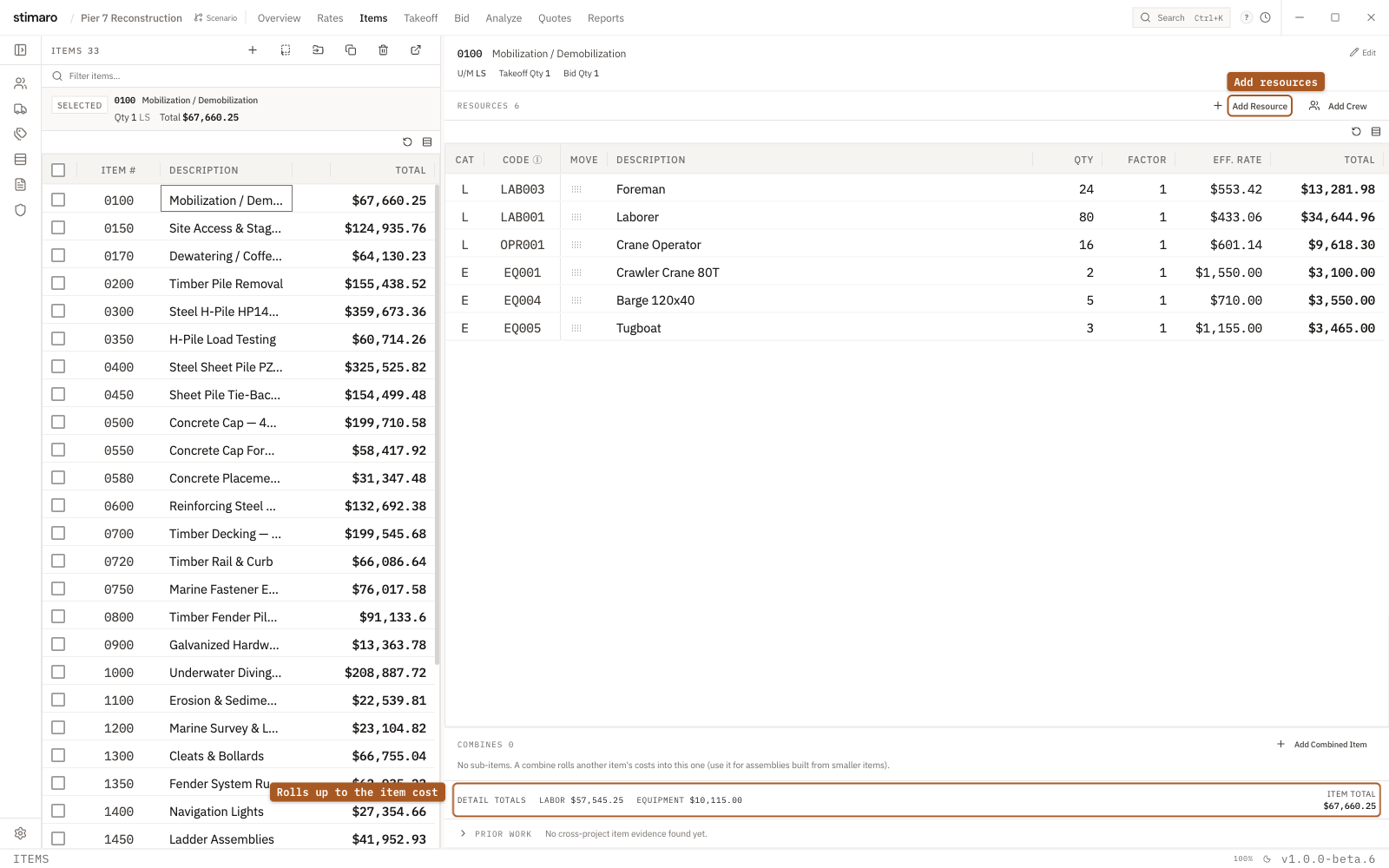
Step 1: Open the item
Go to the Items tab and select the item you want to build out. Its resources appear in the detail panel under the Resources heading.
Step 2: Open the Add Resource controls
Click Add Resource in the item detail toolbar. An add strip appears above the resources grid where you'll pick and configure the resource.
You can also click Add Crew to drop a whole crew's members onto the item at once, or use the bulk add option to add the same resource to several items together.
Step 3: Choose the resource category
Select the resource type using the category buttons: Labor, Equipment, Rental, Material, Subcontract, or Other.
These categories group resources that use different rate rules — for example, labor is wage-based, equipment and rental are often priced per day, and materials are priced per unit.
Step 4: Find and select a resource
Use the filter box (Filter items…) to narrow your project's rate library to what you need. The list shows each resource's code, description, and current rate (for example, "$12.34/LF"), so you can confirm the unit and rate before adding.
Select a resource to fill the form with its default rate and unit.
Rates view, you can right-click and use the Use in item… action on any rate to jump to Items with that resource already prefilled.Step 5: Enter the line details
Qty — How much of this resource the item line uses.
Factor — A multiplier applied to the quantity, used for things like overtime or crew adjustments. It must be greater than zero.
Manual rate — Leave this unchecked to use the rate from your project's rate tables. Check it to type a one-off rate for this line only. A manual rate affects only the line you're editing — it doesn't change the rate table for any other item.
As you enter these, a live preview shows the line calculation (quantity × factor × rate) and the resulting total, so you can confirm it before saving.
Step 6: Save the resource line
Click Add in the add strip to save the line. (You'll see the cue "Resource selected. Click Add to save it." once you've picked a resource.) Click Done to close the strip without adding.
When editing an existing resource, simple changes like quantity or factor save when you click away or press Enter. Bigger changes — swapping the resource or changing its category — require clicking Apply to save.
How resources build the item's cost
Each resource line contributes its own cost: quantity × factor × rate. The item's total cost is the sum of all its resource lines, and the item's unit cost is that total divided by the item quantity.
This is what makes Stimaro's estimating "built-up" rather than flat: instead of one opaque unit price, you see exactly what's driving the cost — which crew, which equipment, which materials, and how much each contributes. When a rate changes or you need to justify a number, you can see precisely where it comes from.