Applying Markup to Your Bid
This article explains how to apply markup to a bid in Stimaro: where to set your percentages, what each type of markup does, and how the panel shows your direct cost becoming the final bid price.
Step 1: Open the Markup Summary panel
Open the Bid tab. The Markup Summary panel appears on the right side of the view.
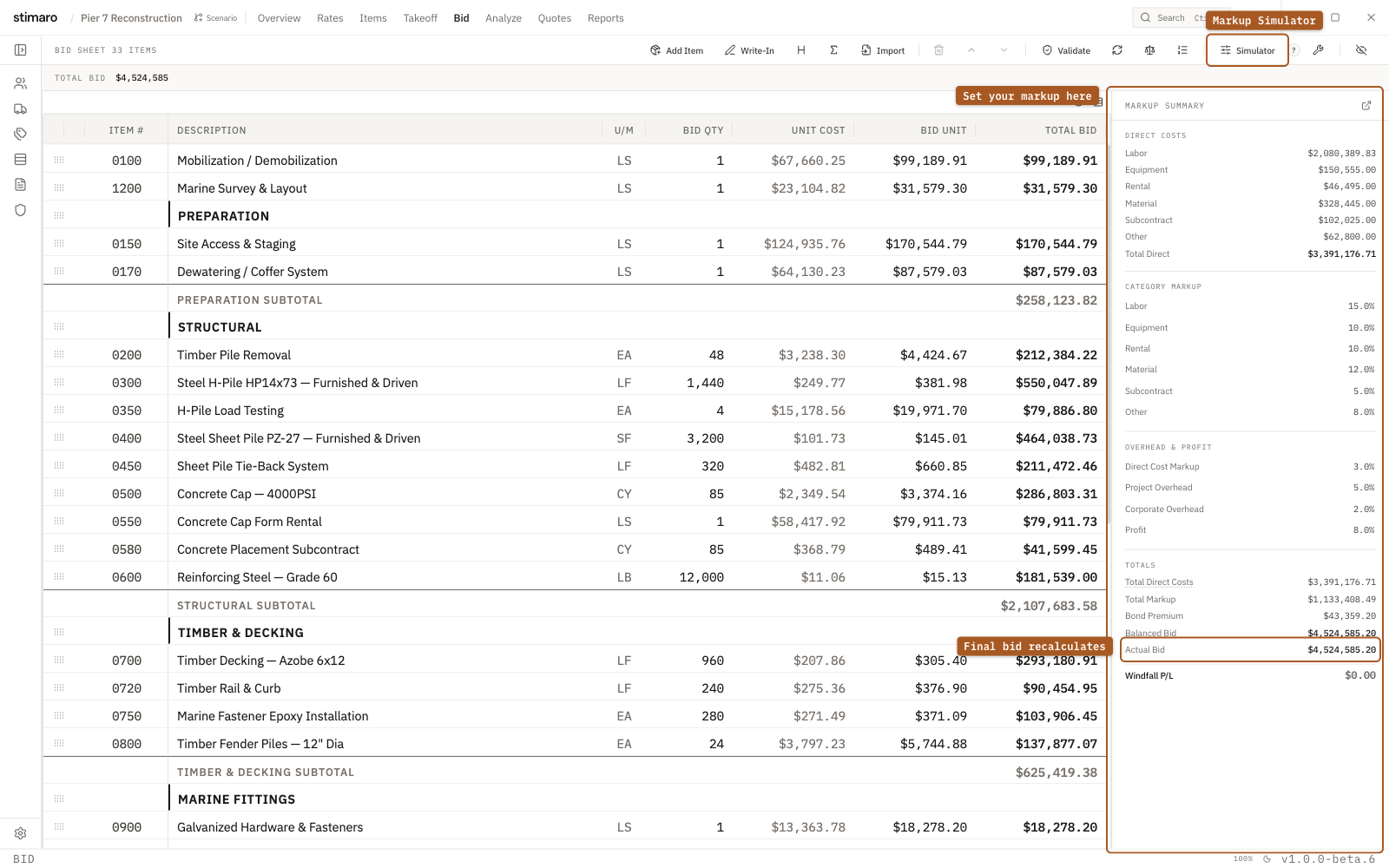
Bid tab. Set your percentages in the Markup Summary panel on the right and the final bid recalculates instantly; open the Markup Simulator to test scenarios first.Understanding the panel
The panel is organized into sections that walk from raw cost to final price:
- Direct Costs — your costs by category (Labor, Equipment, Rental, Material, Subcontract, Other) and the Total Direct.
- Category Markup — a percentage you can set for each cost category.
- Overhead & Profit — percentages for Direct Cost Markup, Project Overhead, Corporate Overhead, and Profit.
- Totals — Total Direct Costs, Total Markup, Bond Premium, Balanced Bid, Actual Bid, and Windfall P/L.
Direct costs are the built-up costs from your items. Markups are percentages applied on top of those costs to produce your final bid.
Step 2: Set category markups
In the Category Markup section, click the percentage next to any category (for example, Labor). The value becomes an editable field. Type your percentage (like 12 or 12.5), then press Enter or click away to save. Press Escape to cancel.
A category markup applies only to costs in that category — your Labor markup affects labor cost only, your Equipment markup affects equipment cost only, and so on.
Step 3: Set overhead and profit
In the Overhead & Profit section, set each of these the same way (click, type, Enter):
- Direct Cost Markup — a shared markup applied across the bid after category markups.
- Project Overhead — overhead for this specific project, applied on top of the marked-up direct costs.
- Corporate Overhead — your company-level overhead, applied after project overhead.
- Profit — your profit percentage, applied near the end to reach the final bid.
How direct cost becomes the final bid
Stimaro applies your markups in a defined order, and the panel shows each layer building on the last:
- Direct — your base direct costs
- Category Markup — the per-category markups
- Direct Cost Markup — the shared markup
- Project Overhead
- Corporate Overhead
- Profit
- Bond Premium
- Balanced Bid — the final bid total
This layered view is the heart of the panel: you can see exactly how your cost turns into your price, and which layer contributes what. As you change any percentage, the Totals update immediately.
A note on Total Direct Costs
The Total Direct Costs shown here is your active bid's direct cost — the six category directs plus any posted indirect costs. This can differ from the "Direct cost" figure on your Dashboard, which sums every item sheet. If the two numbers don't match, that's why.
Experimenting with the Markup Simulator
Stimaro includes a Markup Simulator that mirrors these settings as sliders — category sliders for each cost type and sliders for Direct Cost Markup, Project Overhead, Corporate Overhead, and Profit. It updates pricing live, so you can experiment with different markup scenarios without committing changes to your bid.
The simulator gives you category sliders for each cost type (Labor, Equipment, Rental, Material, Subcontract, Other) and sliders for Direct Cost Markup, Project Overhead, Corporate Overhead, and Profit. As you move them, pricing updates live, so you can see how different markup combinations affect your bid total before deciding what to actually apply.