Setting Up Rental Rates
This article explains how to set up rental rates in Stimaro for equipment you hire rather than own — what goes into a rental's daily cost, and how the rate flows into your items and the bid.
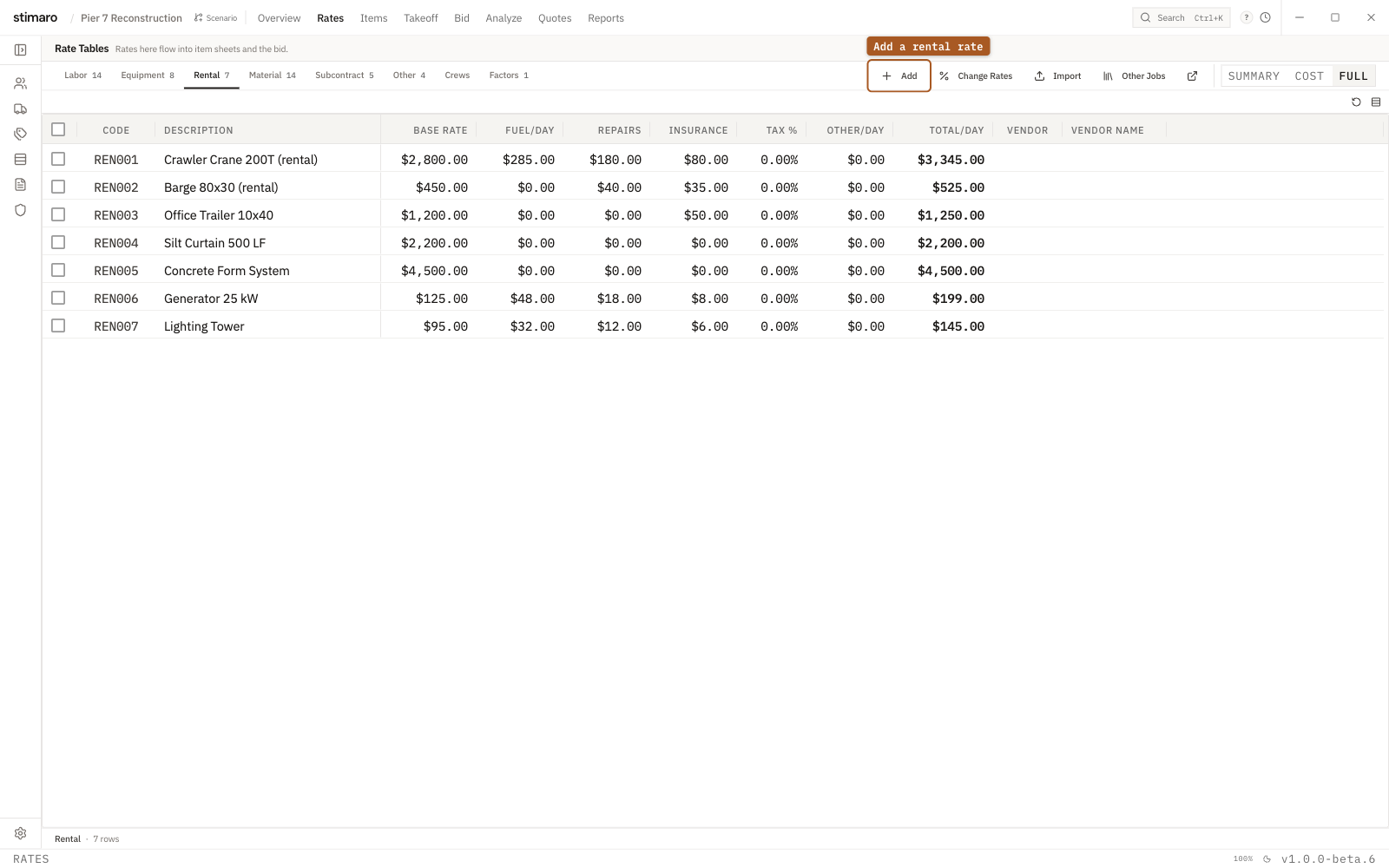
Rental rate table. Same columns as Equipment — a daily rate plus fuel, repairs, and insurance — but for gear you rent rather than own, so there's no ownership build-up.Where rental rates live
Rental rates are stored in the Rates tab. Open a project, click Rates in the top bar, then click the Rental sub-tab. Any equipment you hire on a job — a boom lift, a pump, a compressor, a crane on a day rate — should have a rate here before you build item sheets.
Rental vs. owned equipment
The Rental tab uses the same columns and flow as the Equipment tab, but the two are costed differently. An owned machine's daily cost is built up from ownership components — the machine itself, plus fuel, repairs, and insurance — so its rate carries depreciation you're recovering over the life of the equipment. A rental has no ownership build-up: you pay the vendor a daily rate plus whatever operating costs (fuel, repairs) fall to you, and nothing more. Keep equipment you own on Equipment and equipment you hire on Rental so each is priced honestly. For owned equipment, see Setting Up Equipment Rates.
What you see on the Rental tab
Each row represents one piece of rented equipment, with these columns:
| Column | What it means |
|---|---|
Code | A short identifier. Auto-generated as RNT001, RNT002, and so on, but you can type your own. Must be unique within rental rates. |
Description | The equipment (for example, "40 ft Boom Lift"). |
Base Rate | The vendor's daily rental rate. |
Fuel/Day | Estimated daily fuel cost, if fuel falls to you. |
Repairs | A daily repair or maintenance cost, if the rental arrangement bills it separately. |
Insurance | A daily insurance allocation on the rental. |
Tax % | Sales tax on the rental, if it applies in your jurisdiction. |
Other/Day | Any additional daily cost — a delivery reserve or ancillary charge, for example. |
Total/Day | The calculated all-in daily cost. Read-only — it updates automatically as you edit the other fields. |
Vendor / Vendor Name | Optional — the rental house this rate comes from. |
Many rentals bundle fuel, repairs, and insurance into the rate. When they do, leave those columns at zero and let the Base Rate carry the full cost — use them only when your arrangement bills those items on top of the rate.
You can change which columns are shown using the Summary, Cost, and Full presets above the grid. Full shows everything including the operating costs and vendor; Cost narrows to the rate and total; Summary shows just code, description, and total.
Adding a rental rate
- On the
Ratestab, click theRentalsub-tab. - Click
Addin the toolbar. A new row appears with a generated code (RNT001, RNT002, …) and the description "New Rental." - The cursor drops into the first editable cell. Type a
Code, or keep the generated one, then pressTab. - Fill in
DescriptionandBase Rate, plus any daily operating costs (Fuel/Day,Repairs,Insurance),Tax %,Other/Day, and theVendorif they apply. - Press
Enteror click away. The row saves automatically and theTotal/Dayupdates.
Codes auto-increment to the next free number, so you can keep clicking Add and fill the rows in afterward.
Editing a rental rate
Rental rates edit inline. Click (or double-click) any cell, type the new value, and press Enter or click away. The Total/Day recalculates immediately, and any item using the rate updates with it. Select a row and press Del, or click Delete in the toolbar, to remove it.
Changing all rental rates at once
Rental prices move as a group when the market shifts. Click Change Rates in the toolbar to change every rental rate by a percentage in one step — useful when a rate sheet increases across the board and you want to reprice existing rentals without touching each row.
Importing and copying rental rates
Click Import to upload a spreadsheet of rental rates (CSV or Excel), or Other Jobs to copy rates from another job — handy when a job reuses the same rental house and equipment as one you've already priced. Import takes a file; to paste rows straight from a spreadsheet, paste into the rate grid itself. See Importing rates from a spreadsheet for both.
How rental rates connect to items and the bid
When you add a Rental resource to an item (on the Items tab), you pick the rate by its code. Rental cost is driven by time: you enter how many days the equipment is needed, and the Total/Day multiplies through to the line total. That cost rolls up through the item into your bid alongside labor, equipment, and material. Change the rate later, and every item using it — and the bid total — recalculates automatically.