Linking Item Sheets to the Bid
This article shows how to add priced item sheets to your bid in Stimaro: how linking works, how it differs from a write-in row, and what carries over.
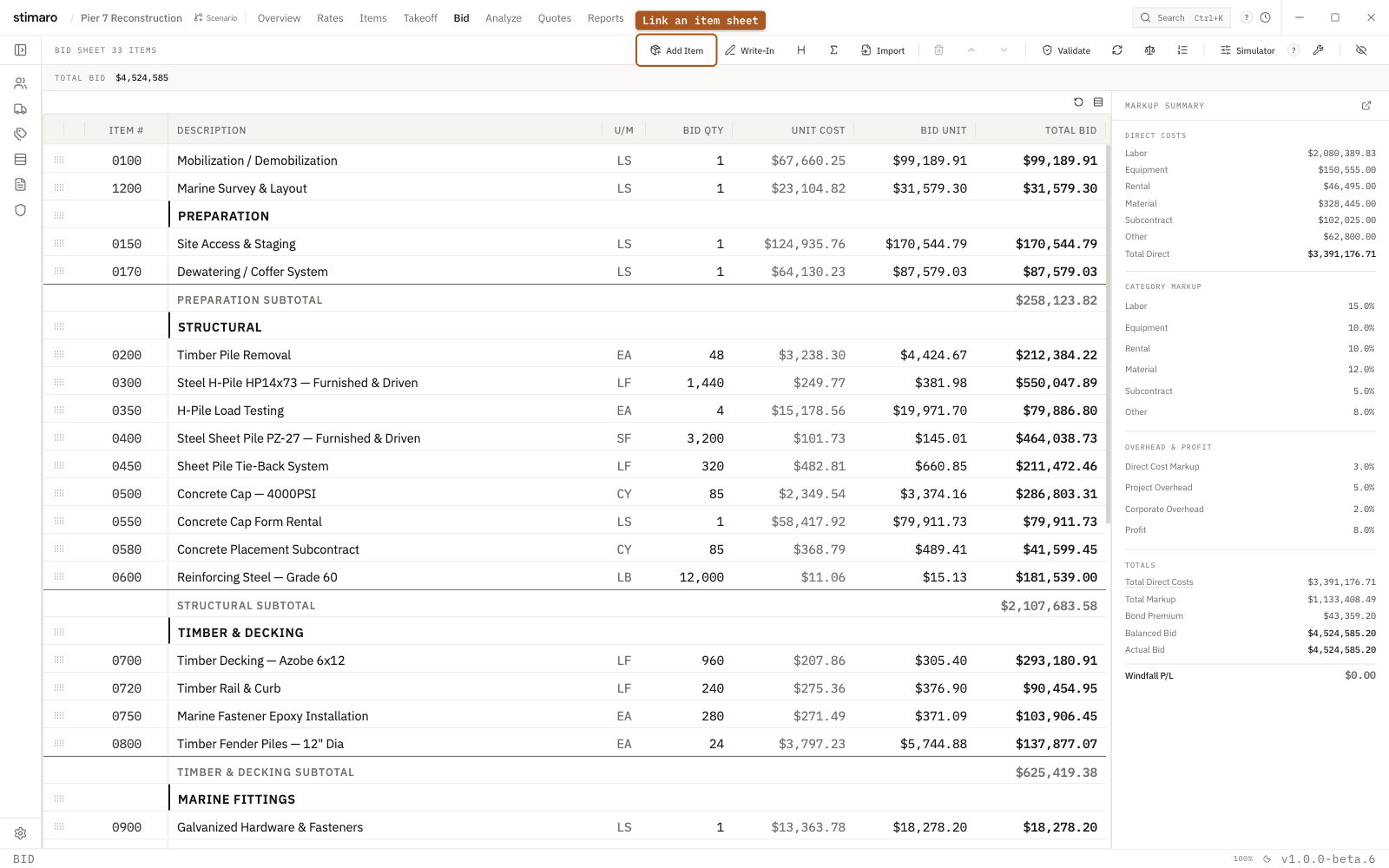
Bid tab. Use Add Item to pull a priced item sheet onto the bid — its cost and quantity carry over.Step 1: Open the Bid
Go to the Bid tab. The toolbar has the two actions you'll use here: Add Item and Write-In.
Add Item vs. Write-In
Add Item links an existing priced item sheet from your Items workspace onto the bid. Use this when you've already built up an item and want its pricing to appear on the bid.
Write-In adds a manual bid row that isn't backed by an item sheet. Use it for a one-off line you want to enter directly. A write-in doesn't link back to an item sheet, so it won't update automatically if your item pricing changes later.
Step 2: Open the link dialog
Click Add Item. Stimaro opens the Link Item Sheets to Bid dialog, which lists your priced item sheets that aren't on the bid yet. Each row shows the item number, description, and item total.
If you don't have any priced item sheets ready to link, Stimaro opens the New Bid Item setup instead, so you can create a fresh bid row from scratch.
Step 3: Select and link
Check the box next to each item sheet you want to add — you can select one or many. The button at the bottom updates to show how many you've selected (for example, Link 3 to Bid).
Click it to link the selected item sheets to your bid. As the dialog notes, each linked item brings its quantity, unit of measure, and direct cost over with it.
What carries over
When you link an item sheet, the bid row picks up:
- Quantity — the item sheet's bid quantity
- U/M — the item's unit of measure
- Direct cost — the item's built-up cost, as calculated on the item sheet
Because the bid row is linked to the item sheet (not a separate manual number), it stays connected to your underlying work. If you later edit the item sheet, linked bid rows can update to reflect those changes.
Creating a new bid row instead
If you'd rather build a bid row directly instead of linking an existing item, click + in the dialog to open the New Bid Item setup.
A shortcut from the Items view
If you have priced items that aren't on the bid yet, the Items view shows a reminder (for example, "3 priced items are not on the bid sheet yet") with an Add to bid button that takes you straight to the same link dialog.