Creating an Item Sheet
This article shows how to create a new item sheet in Stimaro: where to find the Items view, how to open the New Item dialog, what each field means, and how to save your new item.
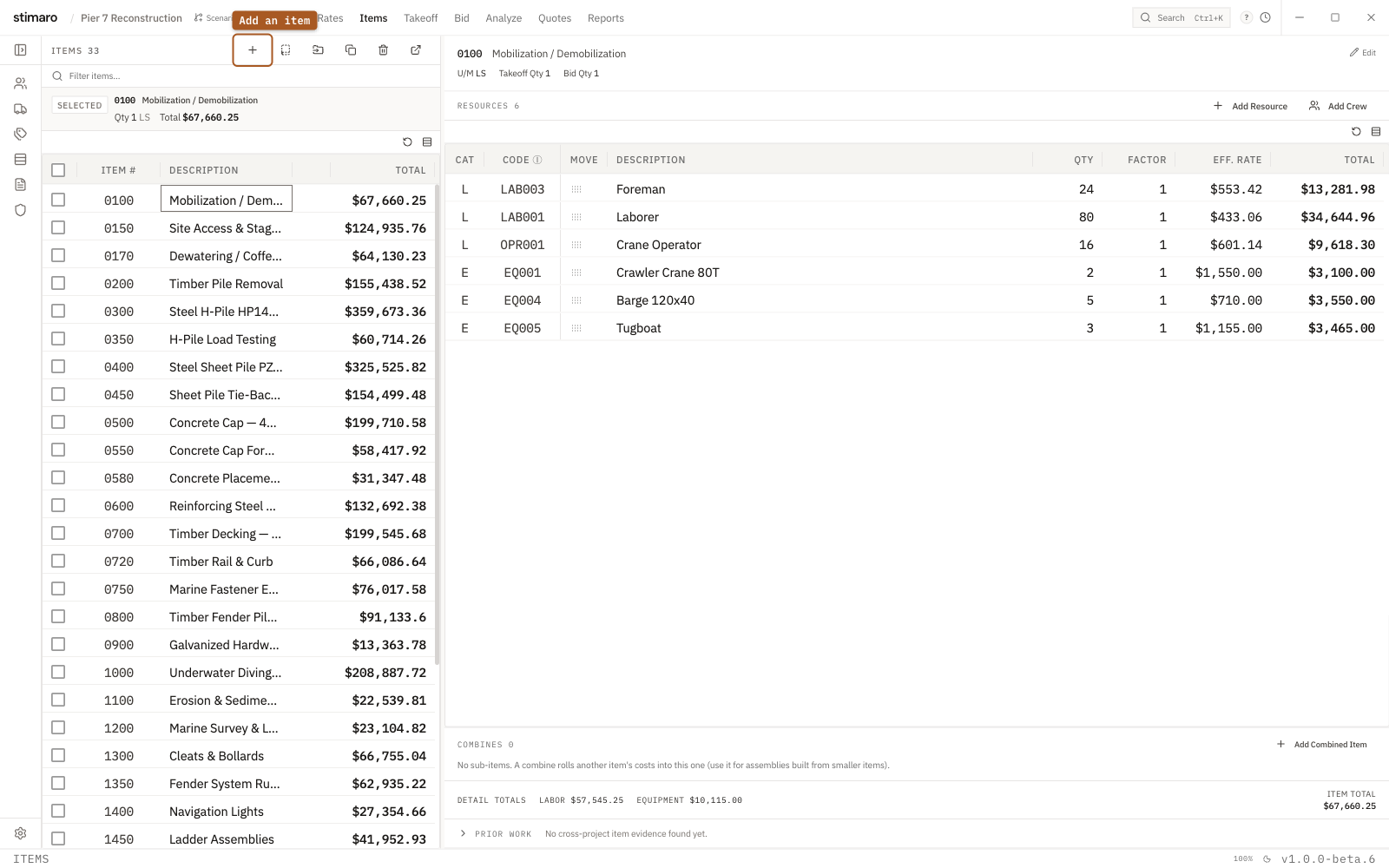
Items tab. Every item rolls its resources up into a total cost, and the list shows all the items on your estimate.Step 1: Open the Items view
From the top navigation, select the Items tab.
Keyboard shortcuts: press Ctrl+3 to jump straight to Items, or Ctrl+K to open the Command Palette and type "Items."
When your Items list is empty, you'll also see a large New Item button in the center of the screen.
Step 2: Open the New Item dialog
Click the + (or press N) button in the Items toolbar (or the center button when the list is empty).
Keyboard shortcut: with the Items view focused (and your cursor not in a text field or grid), press N to open the dialog.
Step 3: Fill in the item details
The New Item dialog has the following fields:
Item # — A short code you assign to the item (for example, "0100" or "MOB-1"). Each item number must be unique within the project. If you enter a number that's already in use, you'll see the message: Item number "XYZ" is already in use. Try a different number.
Description (required) — A short description of the work (for example, "Furnish & install timber piling").
U/M — The unit of measure for the item, such as LF, CY, EA, or LS.
Quantity — The quantity for this item. This sets both your takeoff quantity and your bid quantity to the same starting value. You can adjust takeoff and bid quantities separately later on the item sheet if they need to differ.
Cost Code (optional) — An optional project cost code for this item.
Step 4: Save the item
Click Create Item. The button briefly changes to Creating… while the item saves. You can also press Enter from any single-line field to submit.
Once saved, the dialog closes and your new item appears in the Items list with its item sheet ready to build out.
Editing an item later
To change an item's details after creating it, select it from the Items list and click the header area (showing the Item # and Description) to open the inline edit controls. From there you can adjust U/M, Takeoff Qty, Bid Qty, and Cost Code.