Overtime and Shift Factors
Overtime and longer shifts cost more — higher wages, and sometimes higher equipment rates too. Factors are the multipliers that reprice an item for those conditions, and Stimaro can build one for you from a work schedule.
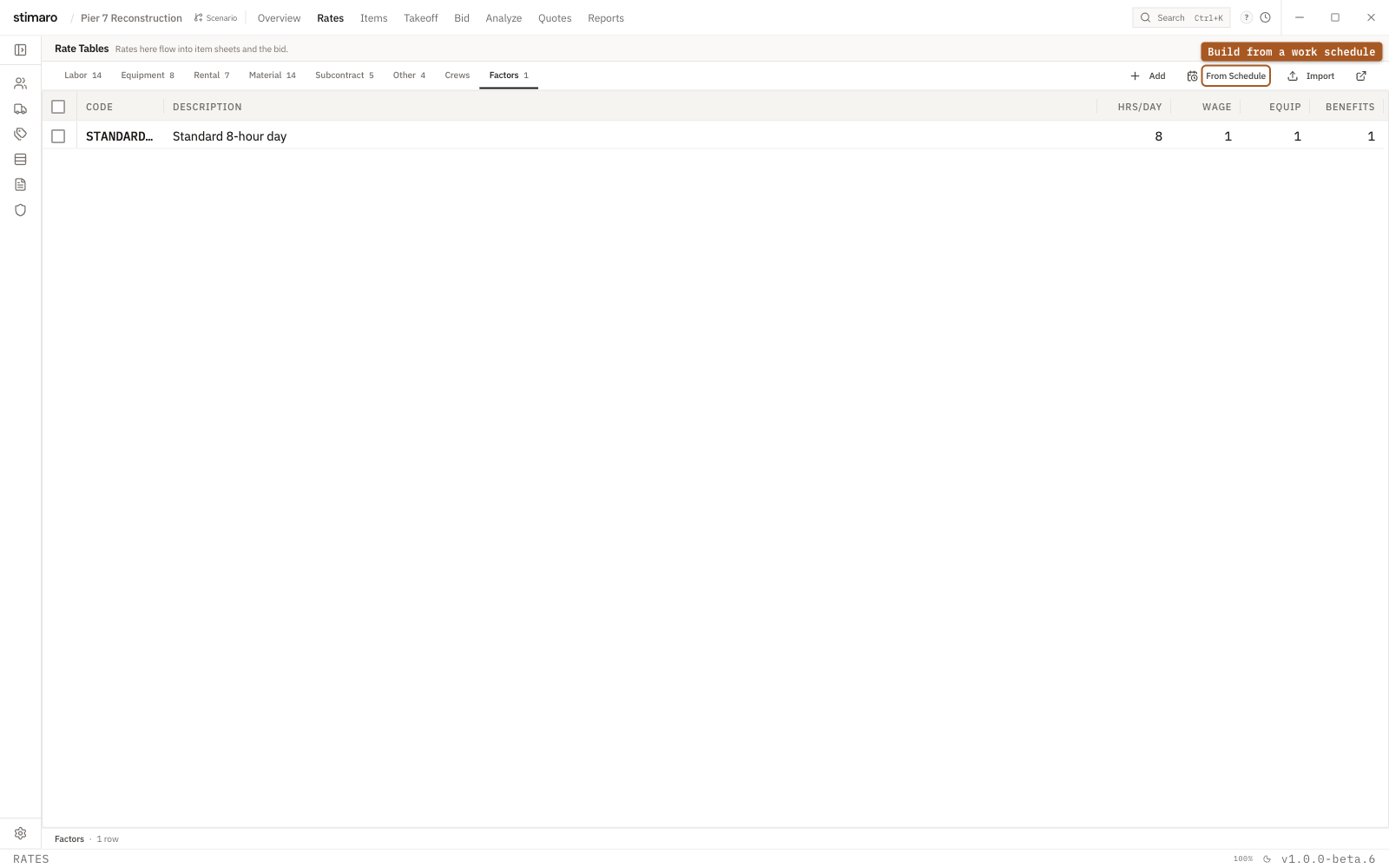
Factors tab. Each factor is a set of multipliers — wage, equipment, benefits — you apply to an item to reprice it for overtime or shift work.What a factor is
Factors are overtime and shift multipliers. They're dimensionless and absolute, not additive: a factor of 1.5 means the cost is multiplied by 1.5, not increased by 50% on top of itself. That distinction matters — a base wage of $40 at a factor of 1.5 is $60, full stop.
Factors live on the Rates tab, under the Factors sub-tab. Each row is one named factor you can apply to an item's labor, equipment, and rental costs.
The factor grid
Each factor is a row with these columns:
| Column | What it means |
|---|---|
Code | A short identifier for the factor. |
Description | What the factor represents. |
Hrs/Day | The scheduled hours per day. This documents the schedule the factor is meant for — it doesn't drive the math on its own. |
Wage | The multiplier applied to base wage and payroll taxes. |
Equip | The multiplier applied to equipment and rental daily rates. |
Benefits | The multiplier applied to fringe benefits. |
Click Add to create a factor. The default is code OT01 (OT02, and so on), description "New Factor," Hrs/Day of 8, and every multiplier set to 1 — a factor of 1 changes nothing, so you edit the values that should differ.
What each multiplier reprices
The three multipliers hit different parts of an item's cost, so you can reflect that overtime affects wages but not, say, the daily cost of a rented machine:
Wage ×— applied to base wage and payroll taxes.Benefits ×— applied to fringes.Equip ×— applied to equipment and rental daily rates.Hrs/Day— documents the schedule the factor represents; it's a reference, not a multiplier.
For example, a time-and-a-half factor coded OT15 would set Wage × to 1.5 and Equip × to 1.0 — labor costs half again as much, but the machine's daily rate is unchanged.
Building a factor from a schedule
If you'd rather describe the shift than back into the multipliers, click From Schedule in the toolbar (its tooltip reads "Compute wage / benefits / equipment multipliers from a work schedule"). This opens the "Build Factor from Schedule" dialog, where you enter the schedule and Stimaro computes the multipliers for you:
| Input | Default | What it means |
|---|---|---|
Days / week | 6 | Days worked per week (1 to 7). |
Hours / day | 10 | Hours worked each day. |
Overtime after | 8 | The hour after which the day pays overtime. |
OT multiplier | 1.5 | The overtime pay rate, as a multiplier. |
A live preview shows the straight-time and overtime hours per week that result, along with the computed Wage ×, Benefits ×, and Equip ×. The multipliers are computed on an 8-hour-day basis. Click Create Factor to save the result as a new row, which you can then edit like any other.
Applying a factor to an item
To apply a factor, edit the Item Sheet header and set the Overtime factor dropdown (its tooltip reads "Overtime factor — reprices labor, equipment, and rental resources"). When you save, that item's labor, equipment, and rental resources are repriced by the factor's multipliers. The factor applies per item, so you can run one item on overtime without touching the rest of the estimate.