Organizing Your Bid with Sections
This article covers how to use section headers and subtotal rows to group, label, and subtotal your bid — including adding sections, renaming them, moving items into them, and maintaining a library of common section names.
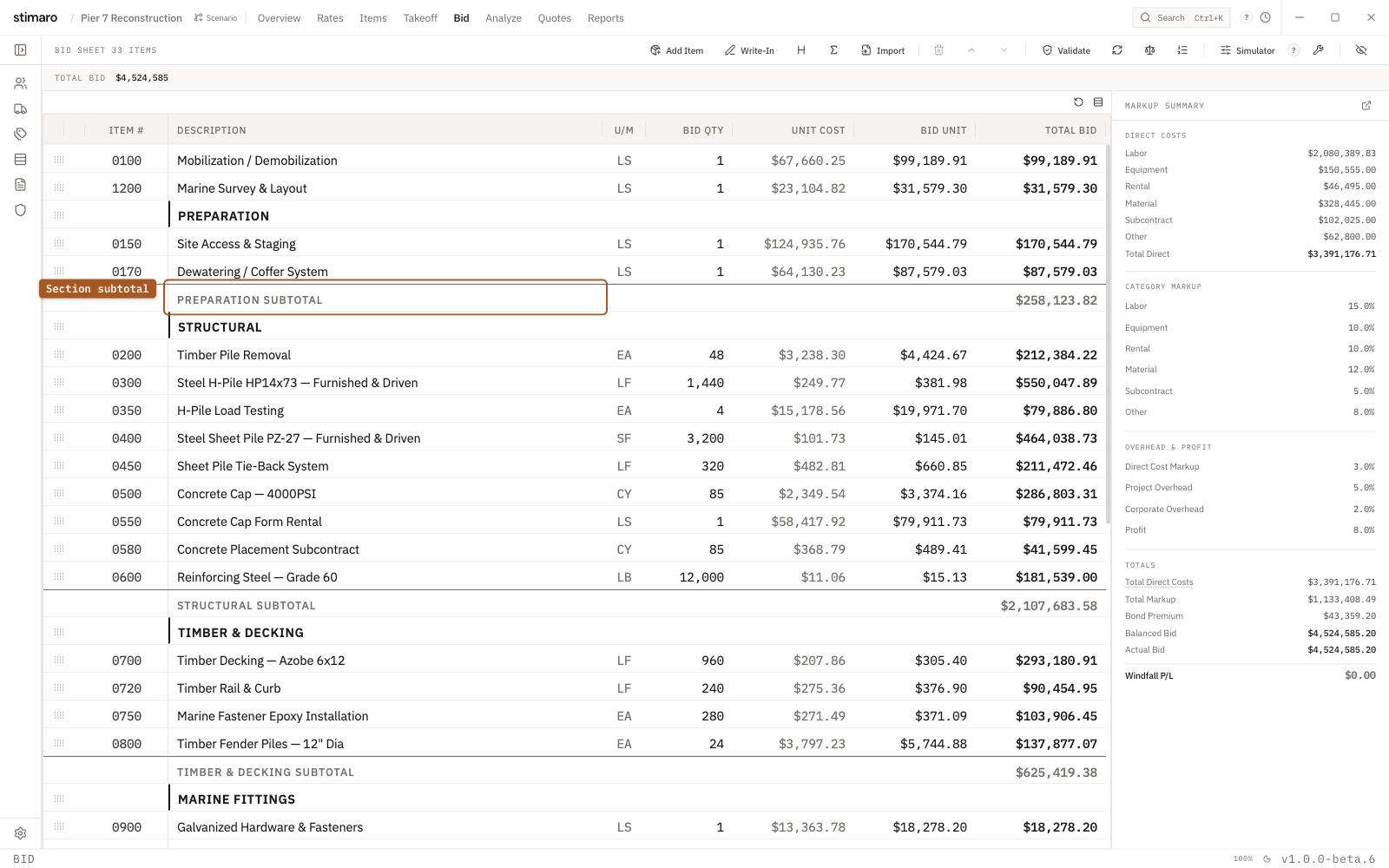
What sections are
A section is a labeled grouping row on the bid sheet. Sections carry no cost of their own — they're structural markers that divide your bid into named groups. Each section can include a subtotal row that automatically sums the total of every item beneath it.
Sections help you match the structure of an owner's bid form, break a large bid into logical phases or disciplines (Mobilization, Marine Structures, Electrical, Closeout), show subtotals by area of work, and scan a long bid quickly.
An important thing to understand: items don't "belong" to a section in a fixed way. A section header groups whatever item rows appear below it in sequence, down to the next section header or the end of the bid. You put an item in a section by positioning it below that header.
Adding a section header
- On the
Bidtab, click theAdd section headerbutton in the toolbar (the heading icon – ᕼ). - A new header row appears at the bottom of the grid with the placeholder
NEW SECTION, styled in bold uppercase to stand out from item rows. - The row is selected with its label open for editing — type the section name (for example, "Phase 1 — Marine Structures") and press
Enter.
If you've used a section name before, it may appear as an autocomplete suggestion, because section labels are saved to your Sections library as you use them.
Renaming a section header
Section text is editable inline. To rename one, double-click the header row's label (or press F2 while it's selected), type the new name, and press Enter. The new label is also saved to your Sections library for future autocomplete.
Adding a subtotal row
A subtotal row shows the running total of all item rows between the nearest section header above it and the subtotal itself. It updates automatically as item totals change.
- On the
Bidtab, click theAdd subtotal rowbutton in the toolbar (the sigma / Σ icon). - A subtotal row appears at the bottom of the bid.
- Drag it into position below the last item you want it to cover.
A subtotal sums the item rows (including write-ins) between the section header above it and the subtotal row. Other headers and subtotals in the same range aren't double-counted.
Moving items into a section
Because a section groups whatever sits below its header, you move an item into a section by reordering it:
- Select the row, then use the
Move row up/Move row downtoolbar buttons (orAlt+Arrow Up/Alt+Arrow Downwhile the row is selected in the grid). - Or grab the drag handle on the left edge of the row and drag it into place.
Rows can cross section boundaries freely — a row is "in" whichever section's header is immediately above it.
Reordering and deleting sections
Section headers are rows like any other. Reorder one with the same move buttons or by dragging — note that moving a header moves only the header, not the items below it, so to relocate an entire section you move each row. To delete a header or subtotal, select it and click Delete (trash icon); deleting a header leaves its item rows on the bid, just no longer grouped.
The Sections library
The Sections library stores the section names that autocomplete when you type a header. Names are added automatically the first time you use them, and you can also manage the list directly: click Sections under Libraries in the left sidebar, then use + Add to add a label in advance, F2 to rename, or Delete to remove one. Renaming a label in the library changes future autocomplete only — it doesn't retroactively rename headers already placed on existing bids.
Sections in reports
When you generate an Estimate Review Package from the Reports tab, your section labels appear as dividers and your subtotals carry through automatically, so reviewers get a breakdown that matches your bid structure.