Setting Up Other Costs
This article covers other costs in Stimaro — the line items that don't fit labor, equipment, material, or subcontract, like permits, bonds, and fees — and how they feed your item sheets and the bid.
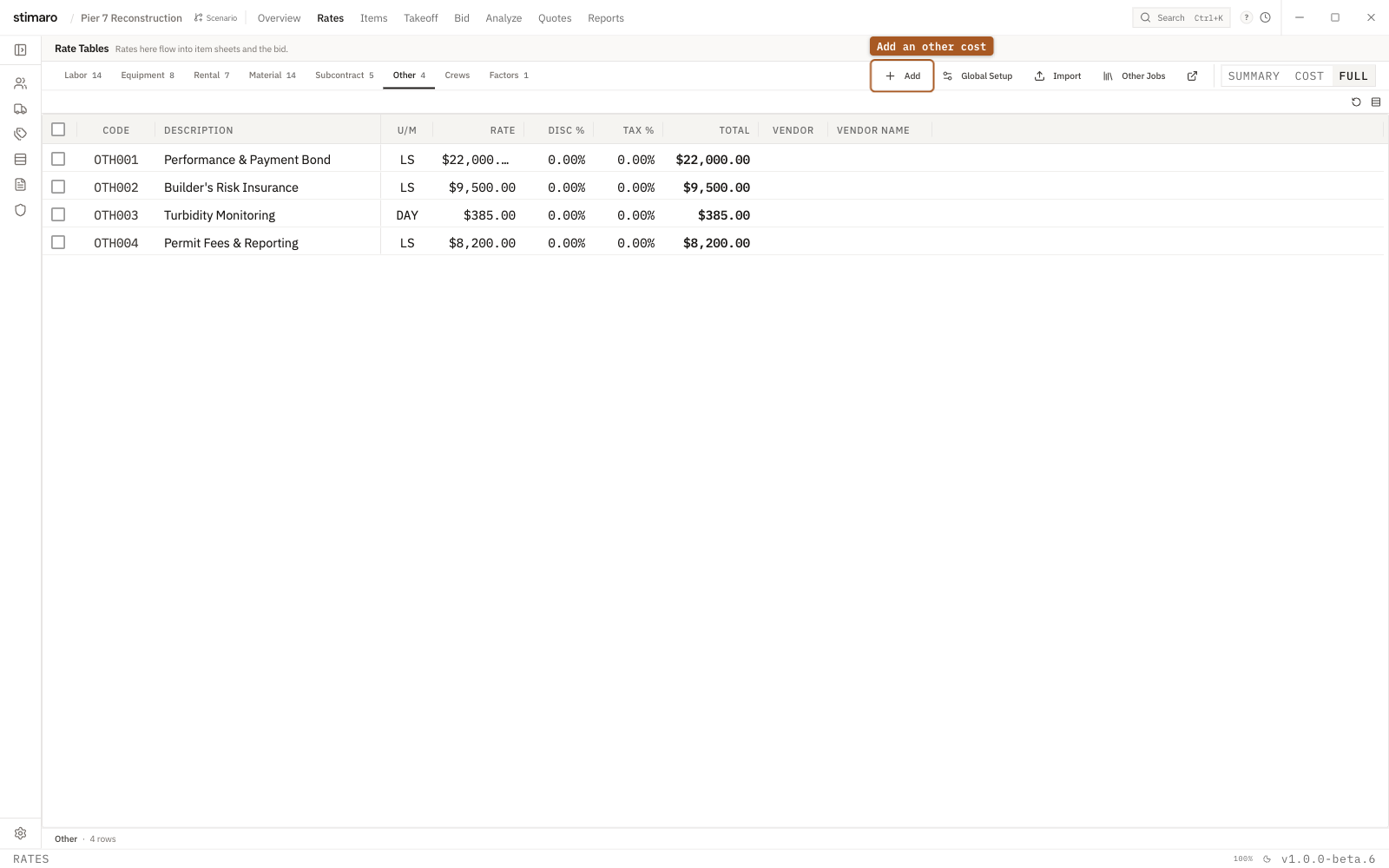
Other rate table, for costs that don't fit the other categories — permits, bonds, fees, and testing.Where other costs live
Other costs are stored in the Rates tab. Open a project, click Rates in the top bar, then click the Other sub-tab. This is the catch-all for costs a job carries that aren't a person, a machine, a material, or a sub — permits, bonds, fees, testing, mobilization line-items, and the like. When the tab is empty, it prompts you: "Add miscellaneous costs like permits, bonds, and fees."
The same layout as Material
The Other tab uses the same columns and flow as the Material tab — code, rate, discount, tax, and a calculated total. If you've set up material rates, this will feel identical. See Setting Up Material Costs for the shared behavior.
What you see on the Other tab
Each row represents one miscellaneous cost, with these columns:
| Column | What it means |
|---|---|
Code | A short identifier. Auto-generated as OTH001, OTH002, and so on, but you can type your own. Must be unique within other costs. |
Description | The cost (for example, "Payment & Performance Bond" or "Concrete Testing"). |
U/M | Unit of measure. Defaults to EA, but you can price per unit (LS, LF, etc.) when that fits the cost. |
Rate | The cost per unit, before discount or tax. |
Disc % | A discount percentage applied against the rate, if one applies. |
Tax % | Sales tax percentage, applied after the discount. |
Total | The calculated cost. Read-only — it updates automatically as you edit the other fields. |
Vendor / Vendor Name | Optional — the agency or supplier this cost came from. |
You can change which columns are shown using the Summary, Cost, and Full presets above the grid.
Adding an other cost
- On the
Ratestab, click theOthersub-tab. - Click
Addin the toolbar. A new row appears with a generated code (OTH001, OTH002, …), the description "New Other," and a U/M ofEA. - The cursor drops into the first editable cell. Type a
Code, or keep the generated one, then pressTab. - Fill in
Description,U/M, andRate, and — if they apply —Disc %,Tax %, and theVendor. - Press
Enteror click away. The row saves automatically and theTotalupdates.
Codes auto-increment to the next free number, so you can keep clicking Add and fill the rows in afterward. Select a row and press Del, or click Delete in the toolbar, to remove it.
Setting tax or discount across all other costs at once
Use Global Setup (global sales tax / discount setup) to apply the same tax or discount to every other cost in one step, rather than editing each row. Import a spreadsheet of costs with Import, or copy rates from another job with Other Jobs — mobilization, bonds, and permit lines often repeat from one job to the next.
How other costs connect to items and the bid
On the Items tab, when you add a resource and choose the Other category, you'll see your other costs. Selecting one brings its Total in as the cost for that line. That cost rolls up through the item into your bid alongside labor, equipment, material, and subcontract. Change the rate later, and every item using it — and the bid total — recalculates automatically.