Moving Money Between Bid Items
Move Money shifts dollars from one bid item to another without changing the bid total. This article covers why estimators do that on purpose, how to create and manage transfers, and how the tool holds your bottom line fixed while money moves underneath.
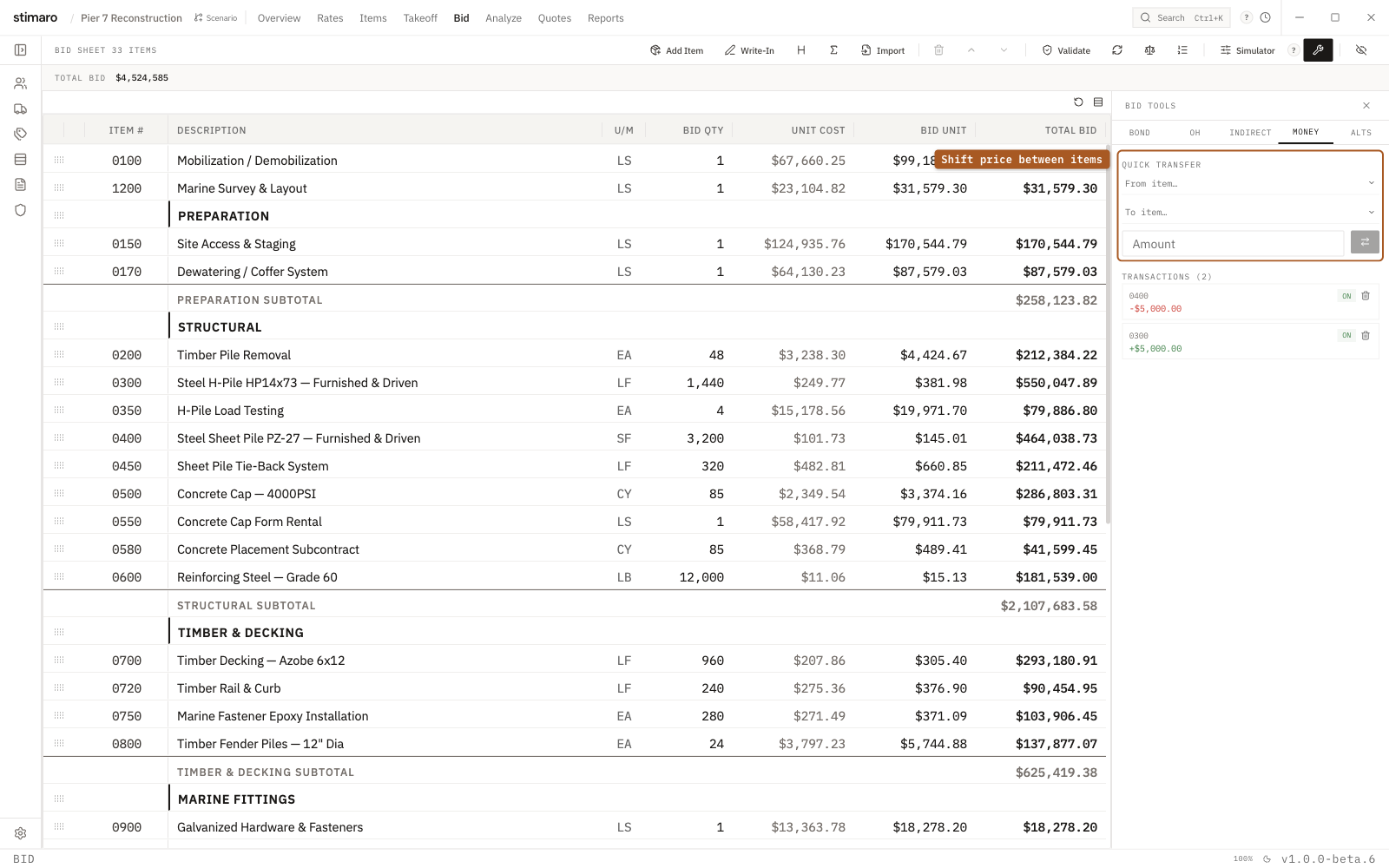
Money tab in Bid Tools. Pick a from-item and a to-item, enter an amount, and the transfer shifts bid price between them while the total stays fixed.Why move money between items
A bid that adds up correctly can still be arranged in more than one way. The same total can be spread across the line items evenly, or it can be weighted — more dollars on some items, fewer on others. Deliberately weighting a bid this way is called unbalancing it, and experienced estimators do it for concrete reasons:
- Front-loading cash flow — you move money onto the items you'll build and bill first (mobilization, early earthwork, demolition). You get paid for that work sooner, which improves your cash position for the rest of the job.
- Hedging quantities — if you suspect a plan quantity is overstated and the item may shrink or drop, you shift money off it and onto items you're confident will get built. That protects your recovery if the questionable item never fully materializes.
Unbalancing changes how the money is spread across items, not how much money there is. Move Money keeps that distinction safe: every transfer preserves the bid total.
Opening Move Money
Open the Bid tab and click the wrench button in the toolbar (its tooltip reads Bond, overhead, move money tools). This opens the Bid Tools panel. Select its Money tab — that's Move Money.
Creating a transfer
The Quick Transfer controls at the top of the tab create a single transfer between two items:
- Choose a
From item…— the item you're taking money off of. The dropdown lists your bid's item rows asitem number — description. - Choose a
To item…— the item you're moving money onto, picked the same way. - Enter an
Amount. The field accepts arithmetic, so you can type1500*2and it evaluates to 3000. Entering a negative amount reverses the direction of the transfer. - Click the arrow to create the transfer.
Money moves as bid-unit price and dollars between the two items. The amount comes off the From item and lands on the To item, so the two changes cancel out and the bid total stays exactly where it was.
The Transactions list
Every transfer you create appears as a card in the Transactions list below the Quick Transfer controls. Each card shows both legs of the move — item → item — with the signed change on each leg: the amount added shows in green with a +, and the amount removed shows in red with a −. That way you can read exactly what each transfer did to each item.
Each transaction card has two controls:
| Control | What it does |
|---|---|
ON / OFF toggle | Turns the transfer on or off. An inactive (OFF) transfer is dimmed and doesn't affect pricing, so you can park a scenario without deleting it and switch it back on later. |
| Delete | Removes the transfer entirely. Deletion is undo-protected, so an accidental removal can be reversed. |
Because transfers can be toggled rather than only added or deleted, you can build up several weighting scenarios and compare them — switch one arrangement off, another on, and see which shape you prefer before committing to it.
The total doesn't change
Move Money never changes the bid total. Whatever it takes off one item it puts on another, so the number the owner sees as your bottom line is identical before and after. You're rearranging where the money sits inside the bid, not raising or lowering the price. That's what makes it safe for strategy: the competitive number holds steady while you tune the internal distribution for cash flow or quantity risk.
Move Money and validation
Because unbalancing is a deliberate act with real consequences if it's left in by accident, the Validation feature flags active move-money transactions before submission. When you run validation, any transfers that are toggled ON are surfaced so you confirm they're intentional — a reminder to review your weighting one last time rather than a signal that anything is wrong. See Using the Validation feature for the full set of pre-submission checks.