Using the Markup Simulator
The Markup Simulator is a scratchpad for markup — try a change against the current bid, watch where the total lands, and commit only when you're ready. This article covers opening the panel, the sliders and the Target Bid Solver, reading the Live Preview, and applying or discarding what you test.
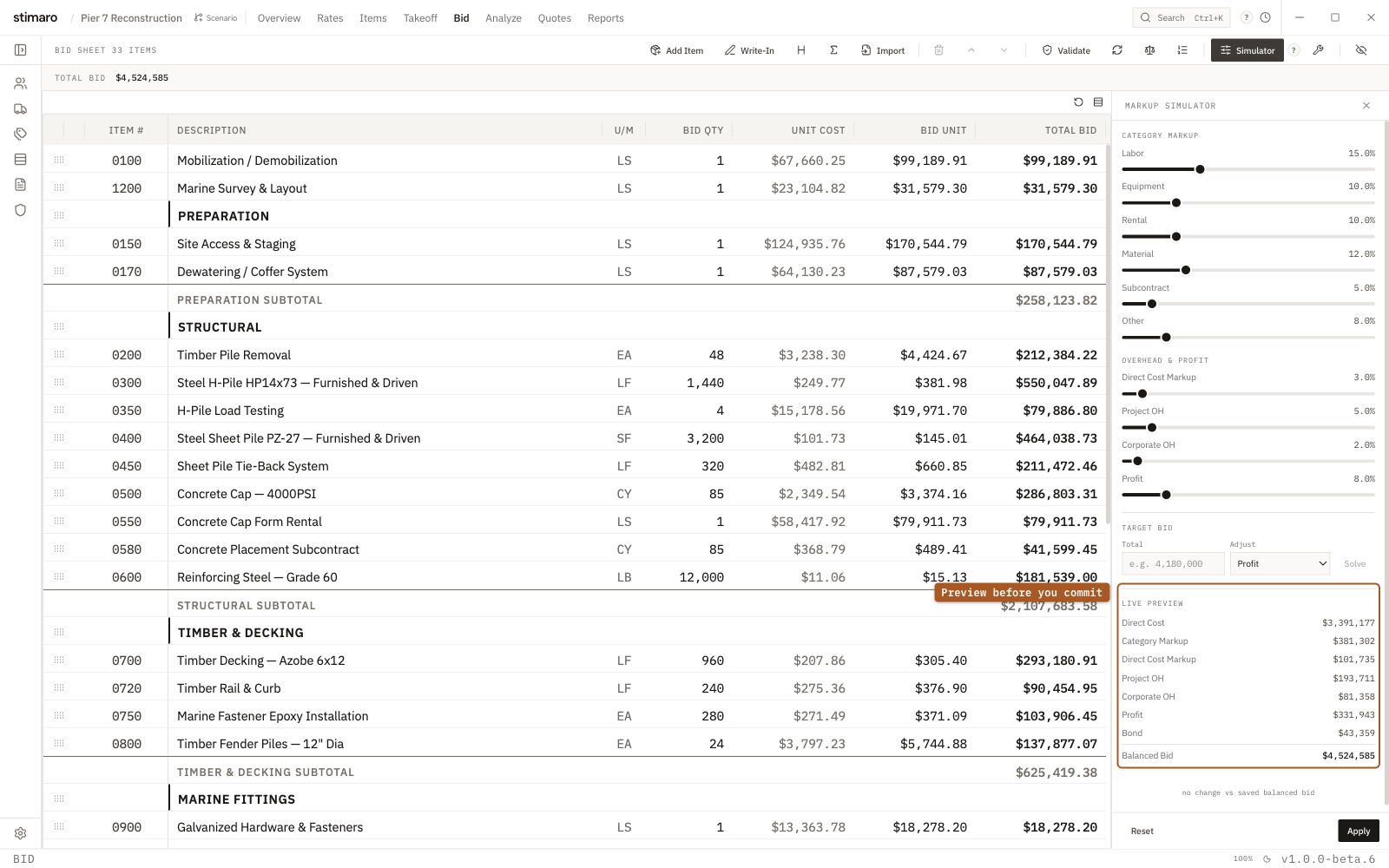
Markup Simulator. Drag the category and overhead/profit sliders and the Live Preview shows the new balanced bid — nothing changes on your real bid until you click Apply.What the Simulator is for
Markup is a judgment call, and the right number is rarely obvious on the first try. You want to see what happens to your bottom line before you change anything — nudge labor up two points, trim profit half a point, and watch where the bid lands. The Markup Simulator is that safe space. It mirrors your markup settings as sliders and shows the resulting bid live, but it never touches your real bid until you tell it to.
Think of it as scenario testing. You can move every lever, compare the result against your saved bid, and walk away without consequence — nothing you do in the Simulator sticks unless you click Apply.
Opening the Simulator
Open the Bid tab and click the Simulator button in the toolbar (its tooltip reads Markup simulator). The Markup Simulator panel opens on the right side of the view, loaded with your bid's current markup values.
The sliders
The panel gives you a slider for every markup lever on your bid. Each slider steps in 0.5% increments and ranges from 0% to 50%. They're grouped the same way the Markup Summary panel is:
| Group | Sliders |
|---|---|
| Category Markup | Labor, Equipment, Rental, Material, Subcontract, Other |
| Overhead & Profit | Direct Cost Markup, Project OH, Corporate OH, Profit |
A category slider marks up only the direct cost in that category — moving Labor changes the markup on labor cost and nothing else. The Overhead & Profit sliders layer on top of the marked-up direct costs, in the same order the bid calculates them. As you drag any slider, the Live Preview recalculates immediately, so you can watch each move's effect on the total.
Reading the Live Preview
The Live Preview shows the full breakdown of the bid your current slider positions would produce, layer by layer:
Direct Cost— your base built-up cost, before any markupCategory Markup— the per-category markups from the slidersDirect Cost Markup— the shared markup across the bidProject OH— project overheadCorporate OH— corporate overheadProfit— your profit layerBond— bond premium, if the job carries oneBalanced Bid— the resulting bid total, shown in bold
Below the breakdown is a delta readout that compares the previewed Balanced Bid against your saved bid — for example +$4,200 vs saved balanced bid or -$2,750 vs saved balanced bid. The readout is green when your scenario comes in lower than the saved bid and red when it comes in higher, so you can see which direction you've moved the number and by how much.
The Target Bid Solver
Sometimes you're working backward from a number — you know the total you want to hit and need to find the markup that gets you there. The Target Bid Solver embedded in the panel does that for you. Enter the total you're aiming for and the solver works backward to the lever percentage that produces it.
- Enter your target total in the
Target Bid Solver. - The solver calculates the lever percentage that lands the bid on that number.
- Click
Useto move the matching slider to that percentage.
Use only moves the slider — it drops the solved percentage into the Simulator like any other slider change. It does not commit anything to your bid. You still review the Live Preview and decide whether to apply it, exactly as you would with a change you dialed in by hand.
Applying or discarding your scenario
Nothing you do in the Simulator reaches your real bid until you act on it:
Apply— saves the markup you've been testing to the bid. This is the only commit in the panel.Reset— returns every slider to your saved values, undoing the scenario you were exploring. An Undo toast appears in case you reset by mistake.
With Apply as the only commit, experiment as much as you want. Closing the panel or hitting Reset leaves your bid untouched.
Apply rebalances the bid to the new markup — so if you've made deliberate manual price overrides, expect them to be reconciled when you apply. See Bid balancing and how it works for what that means.