Setting Up Material Costs
This article covers how to add and manage material rates in Stimaro, and how those rates feed the cost of materials on your item sheets.
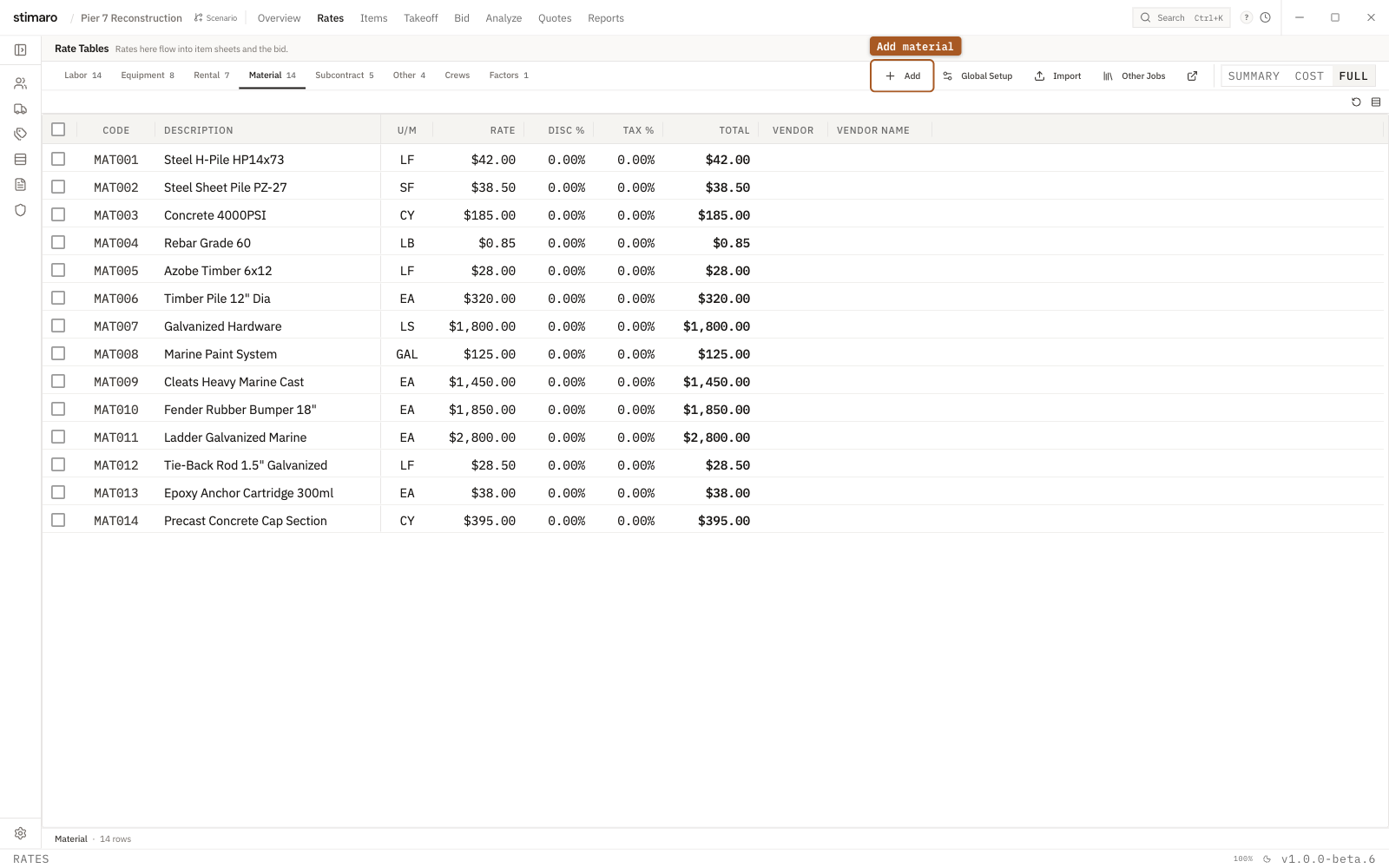
Material rate table. Enter the base rate, discount, and tax; Stimaro calculates the loaded unit cost.Where material rates live
Material rates are stored in the Rates tab. Open a project, click Rates in the top bar, then click the Material sub-tab. Every material you price on a job — riprap, pipe, concrete, lumber, hardware — should have a rate here before you build item sheets.
What you see on the Material tab
Each row represents one priceable material, with these columns:
| Column | What it means |
|---|---|
Code | A short identifier, up to 9 characters. Auto-generated as MAT001, MAT002, and so on, but you can type your own. Must be unique within material rates. |
Description | The material name. |
U/M | Unit of measure — the unit the rate is priced per (CY, TON, LF, EA, etc.). |
Rate | Base price per unit, before discount or tax. |
Disc % | A discount percentage applied against the base rate — for example, a negotiated vendor discount. |
Tax % | Sales tax percentage, applied after the discount. |
Total | The calculated cost per unit. Read-only — it updates automatically as you edit the other fields. |
Vendor / Vendor Name | Optional — the supplier this price came from. |
You can change which columns are shown using the Summary, Cost, and Full presets above the grid. Full shows everything including vendor and tax detail; Cost shows code, description, U/M, rate, and total; Summary shows just code, description, and total.
How Total is calculated
The Total column is the effective per-unit cost that flows into your item sheets:
Total = (Rate − Discount) × (1 + Tax %)
For example, a material with a Rate of $100, a Disc % of 5%, and a Tax % of 8% gives a Total of $100 × 0.95 × 1.08 = $102.60 per unit. Sales tax applies to the discounted rate, not the base rate. If a material has no discount or tax, leave those fields at 0 and the Total equals the Rate.
Adding a material rate
- On the
Ratestab, click theMaterialsub-tab. - Click
+ Addin the toolbar. A new row appears with a generated code and the description "New Material." - The cursor drops into the first editable cell. Type a
Code, then pressTab. - Fill in
Description,U/M,Rate, and — if they apply —Disc %,Tax %, andVendor. - Press
Enteror click away. The row saves automatically and theTotalupdates.
If your Material tab is empty, you'll see an Add Material Rate button in the center of the screen that does the same thing.
Editing a material rate
Click any cell to select it, then double-click (or press F2) to edit. Type the new value and press Enter or Tab. Changes save automatically and the Total recalculates.
Renaming a material code
Renaming a code updates every item sheet that already uses it — you don't have to re-link anything. Right-click the row, choose Rename Code, type the new code, and confirm. You can't rename a code to one that's already in use.
Deleting a material rate
Select the row (or several, using the checkboxes) and click Delete in the toolbar, or right-click and choose Delete. An Undo option appears briefly. If a rate is currently used on an item sheet, the delete is blocked and you'll see a message naming the rate — remove it from those items first.
Setting tax or discount across all materials at once
Use Global Setup to apply the same tax or discount to every material rate in one step:
- On the
Materialtab, clickGlobal Setup. - Enter a
Sales Tax %, aDiscount %, or both. Leave a field blank to leave it unchanged. - Review the preview, then confirm. An
Undooption appears.
Importing material rates from a spreadsheet
- Click
Importin the toolbar. - Choose your Excel or CSV file and select
Materialas the rate type. - Map your spreadsheet columns to the Stimaro fields (Code, Description, U/M, Rate, Discount %, Sales Tax %). Stimaro auto-matches by column header where it can.
- Choose how to handle conflicts (skip, overwrite, or rename incoming).
- Review the preview and confirm.
You can also copy material rates from another project using Other Jobs in the toolbar.
How material rates connect to item sheets
On the Items tab, when you click Add Resource and choose the Material category, you'll see your material rates. Selecting one brings its Total (the after-discount, after-tax per-unit cost) in as the unit cost for that resource line. To override the rate for a single item, check Manual Rate and type a one-off price — it affects only that line and leaves the material rate unchanged.
Shortcut: on the Material tab, right-click any rate and choose Use in item to jump to the Items tab with that rate pre-selected.